


Your bookkeeper needs a CSV of the donor tab, and the board packet is due Friday. The same workbook also holds restricted funds, grants, and volunteer hours. This guide shows how to convert an XLSX to CSV in Excel, Google Sheets, or a short script, then check the file before it reaches your accounting or giving system.
Quick Answer: Convert an XLSX to CSV
Convert an XLSX to CSV from the sheet you mean to import, then check encoding, dates, and quotes before the file reaches your books. Excel, Google Sheets, and a short script can all do the export.
Start with fund accounting and the donation tracking template. For the file cleanup, see data management for nonprofits.
Pick the Right Method for Your Workbook
You only need one clean table. A single tab converted once belongs in Excel or Google Sheets. A job you repeat, or a workbook with many tabs, belongs in a script.
Every CSV is one table of plain text. It cannot carry several sheets, formulas, charts, or cell formatting, which means whichever method you pick, the export is only half the job. The other half is opening the saved file and reading it as text before it goes anywhere near your accounting or giving system.
Excel desktop fits a donor list you already have open. Google Sheets fits a file that already lives in Drive, and it exports only the current tab. csvkit fits repeatable exports on a Mac or Linux machine. Python with pandas handles batch, scheduled, or many-tab jobs. PowerShell with ImportExcel fits Windows batch work.
How the five options compare
| Method | Best for | Sheet selection | Skill needed |
|---|---|---|---|
| Excel desktop | One-off export by one person | Active sheet only | Beginner |
| Google Sheets | File already stored in Drive | Current sheet only | Beginner |
| csvkit | Repeatable exports on Mac or Linux | --sheet flag | Comfortable in a terminal |
| Python with pandas | Batch, scheduled, or many-tab jobs | sheet_name argument | Basic coding |
| PowerShell with ImportExcel | Windows batch jobs | -WorksheetName flag | Basic scripting |
Excel is the fastest path when one person is already in the file. The trade-off is easy to miss. Leave the wrong tab active and the sheets you meant to send never leave the workbook. A script takes longer to set up, but it names the sheet inside the command, so next month's run produces the same columns in the same order and your validation checks still apply.
A monthly donor export, or a workbook with eight tabs, should not depend on a mouse click. Menu wording is a moving target too: Microsoft 365 and older Excel versions label their CSV options differently, so the words in your File menu may not match any guide exactly.
Practical rule: Leave the original XLSX untouched, and save each export in a dated folder so you can compare row counts later.
One export is a task; years of donor and fund files are a migration. Before you change formats at that scale, work through a nonprofit data migration checklist so record counts and field mappings are confirmed for every tab.
How to Export One Tab in Excel and Google Sheets
A finance workbook rarely holds just the tab you need to send. Donors sit beside restricted funds, grants, and volunteers, yet a CSV can only ever contain one sheet of plain text. The export takes whichever tab is active, so the clicks matter less than which tab you were standing on and what the text file looks like afterward.
Microsoft introduced XLSX with Office 2007 as a ZIP package of separate XML parts, which is why one file can hold many worksheets along with formulas, formatting, charts, and pivot tables. A CSV is only text rows and fields. Renaming the file does not convert it.
Saving as CSV keeps only the active sheet, and formulas become their displayed values. Dates, leading zeros, and accented characters are the first things to break once rich cells turn into text, which is why the file gets checked before it reaches donor or accounting software. A workbook with four program tabs needs four separate exports, or a deliberate merge inside the spreadsheet first.
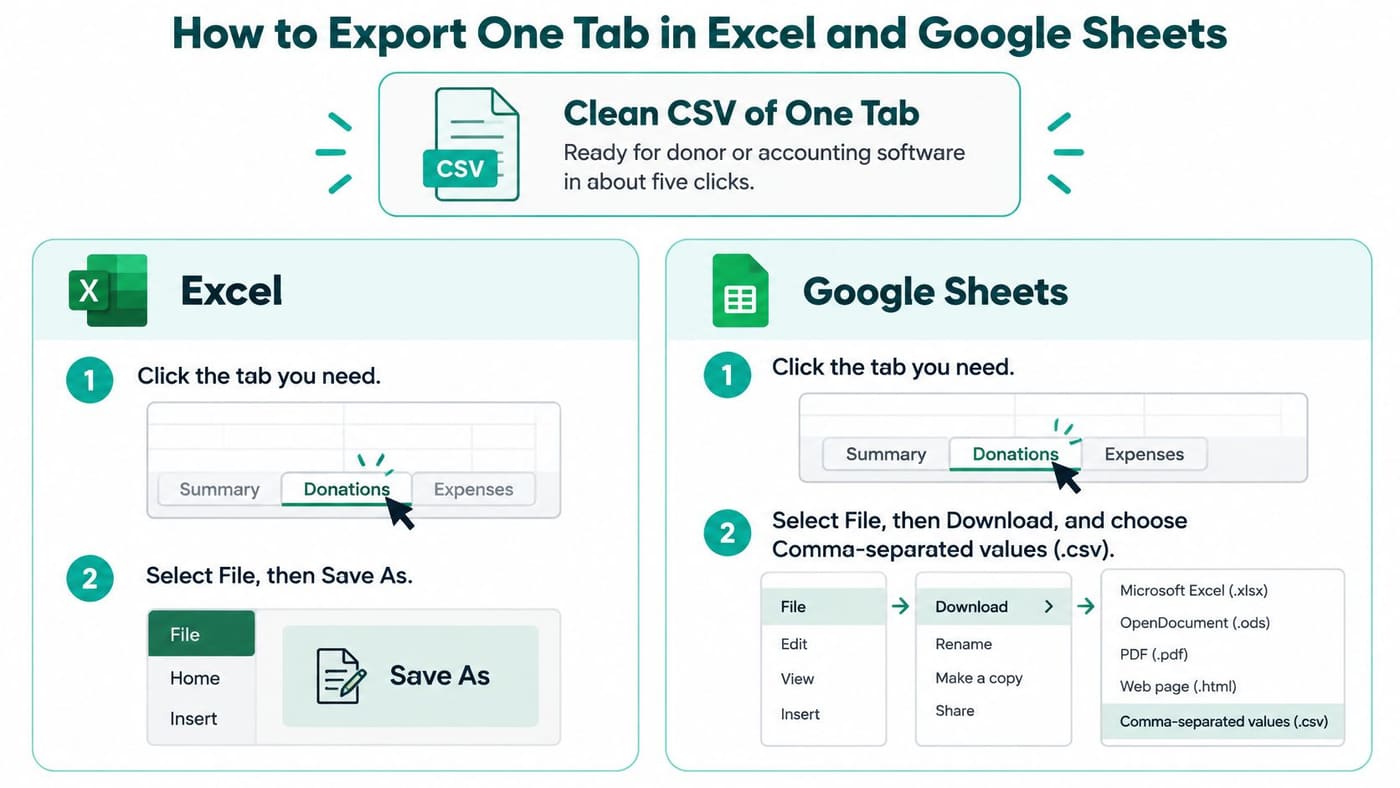
Excel on your computer
- Click the tab you need, because only that sheet will be saved.
- Select File, then Save As, and give the file a new name so the original XLSX stays intact.
- Choose CSV UTF-8 (Comma delimited) on Windows, or Comma Separated Values (.csv) on Mac, because UTF-8 keeps accented donor names intact.
- Confirm the warning that only the active sheet will be saved.
- Open the finished file in Notepad or TextEdit and confirm the commas and quotation marks sit where you expect.
That last step catches bad exports early. A stray comma inside a donor note, or a quote that opens but never closes, shows up in a text editor as visibly shifted columns long before it shows up as a failed import.
Google Sheets
- Open the spreadsheet and select the tab you want.
- Choose File, then Download, then Comma-separated values (.csv, current sheet).
- Open the download and compare the column headers and the last row against the original tab.
Format ZIP code columns as text before you export. A donor ZIP such as 02139 loses its leading zero the moment Excel reads it as a number. Formulas travel as their displayed values rather than as formulas, so check a few totals against the original tab before the file goes anywhere.
Save the CSV under a new name. Overwriting the XLSX is the mistake that is hardest to undo.
How to Convert with csvkit, Python, and PowerShell
A script earns its keep when the same donor, fund, or volunteer tab leaves the workbook every month. The command names the sheet, the encoding, and the output file. You are not hunting through a menu that changes between Excel versions.
csvkit on Mac or Linux
csvkit is the lightest of the three. The setting that causes a silent miss is --sheet. Leave it off and you may export a tab you did not mean to send.
- Install it with
pip install csvkit. - List the tabs with
in2csv -n donors.xlsx, so you see the exact sheet names. - Export one tab with
in2csv --sheet "Donors" donors.xlsx > donors.csv.
Match the sheet name exactly, including spaces. Donors and Donor List are different tabs.
Python with pandas
Pandas is the better fit when you have many files, or you want every tab in one run. The setting that damages IDs is the data type. If you skip dtype=str, ZIP codes and donor IDs can lose their leading zeros.
- Read the workbook with
pandas.read_excel, and passdtype=strso IDs and ZIP codes stay text. - Pass
sheet_name=Noneto receive every tab as a dictionary. - Call
to_csvwithindex=Falseandencoding="utf-8"for each tab.
index=False matters. Without it, pandas adds a numbered column that your import may treat as a donor field. Loop the dictionary and name each file after its tab, such as donors.csv and volunteers.csv.
PowerShell on Windows
PowerShell fits a finance PC that already has no Python installed. The setting that breaks some importers is the encoding.
- Run
Install-Module ImportExcelonce. - Pipe
Import-Excel -Path .\donors.xlsx -WorksheetName DonorsintoExport-Csv -NoTypeInformation -Encoding UTF8.
Windows PowerShell 5.1 writes a byte order mark at the start of a UTF-8 file. PowerShell 7 writes UTF-8 without that mark. Some giving and accounting imports reject the marked file, or they show a strange character in the first header. If the first column name looks wrong, switch to PowerShell 7 or strip the mark before you import.
I would not trust a script that only prints "done." Log the source row count and the exported row count on every run. If those two numbers differ, stop and look at the sheet name before anyone imports the file.
Handling Large and Multi-Tab Workbooks
The limit that surprises people is not file size. It is how much of the workbook the tool tries to hold in memory at once. A church or school file with years of gifts, event registrations, and volunteer hours can be wide as well as long.
| Tool | Limit | Workaround |
|---|---|---|
| Excel desktop | 1,048,576 rows and 16,384 columns per sheet | Split the data by date range or export each tab |
| Google Sheets | 10 million cells across all tabs in one spreadsheet | Delete unused columns or move older records to a new file |
| csvkit in2csv | Loads the workbook into memory | Convert one tab at a time with --sheet |
| pandas read_excel | Loads the whole sheet into memory | Read with openpyxl in read-only mode and write rows as they arrive |
| PowerShell Import-Excel | Loads the sheet into memory | Process the file in batches and append to the CSV |
What to do before you reach those limits
Export one tab at a time. Delete empty columns that inflate the used range, because a sheet that looks short can still be treated as huge if old formatting runs out to column XFD. For a file that is too large to open comfortably, use openpyxl in read-only mode with Python's csv module. That path streams rows to disk instead of loading the whole workbook.
Say your workbook has donors, restricted funds, grants, and volunteers. That becomes four files, each named with the tab and the month, such as donors_2026-03.csv. Your import log can then point at one file, not at "the March workbook."
A 200,000-row donor export is easier to check in chunks by date range than as one file. Split by month or by fund, confirm each chunk, then load them in order. Our notes on moving spreadsheet data cover how to stage those files so a fiscal sponsor can still tell one project from another.
Check and Fix Your CSV Before You Import
A lost leading zero in a donor ID can send a gift to the wrong person, or to no person at all. The file can look fine when you double-click it. The damage shows up after the import.
A CSV is one sheet of text. Whatever is on that sheet is everything the destination system will ever see: no formulas, no second tab, no cell formatting telling it that "00123" was meant to be text. Validation has to happen on the text itself, before the file leaves your hands.
CSV never had one enforced rule set. RFC 4180 documented common conventions and registered the MIME type text/csv, while noting that programs still read CSV in different ways. Fields may or may not be quoted. Commas inside text need escaping. Line endings differ. Encoding is assumed, not guaranteed. Excel's own notes describe CSV as comma-delimited text that saves only the active worksheet, which is why a workbook never survives as a single CSV.
A donor address with a comma must stay inside one field. A note with a line break must stay inside one field too. UTF-8 is the safest choice for international names, though older programs may still expect a local code page. In some European locales, the delimiter is a semicolon because the comma is the decimal mark.
Six checks before any import
- Count the rows. Match the source tab, and do not count the header.
- Count the columns. Header names should match the destination fields.
- Search identifiers. Look at ZIP codes, account numbers, and donor IDs for lost leading zeros.
- Open two hard records. Use one address that contains a comma, and one note that contains a line break.
- Read names and dates. Accented names should look right, and dates should not swap day and month.
- Load a test file. Import a small sample into the destination system before you load real records.
The pandas read_excel documentation treats XLSX and CSV as different formats, commonly moved with read_excel() and to_csv(). That move is not lossless. Verify row and column counts, then inspect dates, leading zeros, long IDs, blank cells, and formulas. Keep the original XLSX as the authoritative file. An ID such as "00123," a restricted-fund code, a ZIP code, or an account number can be reread as a number with no warning.
| Symptom | Likely cause | Fix |
|---|---|---|
| ZIP codes or donor IDs lose leading zeros | Excel reads the column as numbers | Format the column as text before export, or use dtype=str in pandas |
| Accented names show odd characters | File saved in a local code page, not UTF-8 | Save as CSV UTF-8 or set encoding to utf-8 |
| Columns split in the wrong places | Locale expects semicolons as delimiters | Set the delimiter in the import dialog or export with semicolons |
| Day and month swap in dates | Locale date format read on import | Export dates as yyyy-mm-dd text |
| Notes spill onto new rows | Line breaks inside a field are not quoted | Check that the writer quotes fields with line breaks |
| A tab is missing from the output | CSV saves only the active sheet | Export each tab separately and name each file |
Work through the table top to bottom and you have covered the five ways CSV files most often break on import.
Before you upload donor data to a free online converter, read its privacy terms and confirm where the file is stored. Donor names, gift amounts, and volunteer notes do not belong on a site you have not reviewed. Converter behavior also shifts over time, and update logs such as the research analytics development news show how often vendors revise parsing and export features, so recheck a tool you last used months ago rather than trusting old output.
When the test file looks right, follow the field mapping in our guide to importing data. Map the sample first. A wrong column on a test file is a short fix. The same mistake on a full donor file is a weekend.
Stop Repeating the Conversion Every Month
Hand conversions are where the errors creep in. Every save-as-CSV picks one sheet, one encoding, and one date format, and produces a text file with no formulas and no second tab to fall back on. Do that monthly for donor, fund, and volunteer records and you get twelve chances a year to ship a bad file.
A system that builds the report itself removes most of that work. AlignMint can export financial reports to PDF or Excel when a funder still wants a file. The balance sheet starts on Plus, and Form 990 Builder starts on Pro. Fund accounting keeps each restricted gift tied to its purpose and release conditions, so a restricted balance stays connected to the gift record. QuickBooks classes tag activity well for many small teams, but a class does not know when a restriction is released. Compare both before you switch.
Nonprofits with up to $100K in annual donations can start on the free plan for one user, with no credit card required. Minty, the AI assistant, answers questions from your approved records. A person still reviews the figures before they reach a board or a funder. When you are ready to leave the monthly export behind, our nonprofit data migration notes walk through the move at your own pace.
AlignMint brings accounting, donor records, volunteers, events, and marketing into one place, so a restricted gift and its receipt do not live in two workbooks you have to convert each month. When you do export, run the file through the same checks you would give any CSV: one sheet, UTF-8, clean dates, quoted line breaks. The difference is that the balance and the gift no longer drift apart between saves. Visit AlignMint to see how fund balances, gifts, and volunteer hours stay in one file.
Frequently Asked Questions
Export the sheet you mean to import from Excel or Google Sheets, or use a short script for a large workbook. Then check the tab, dates, encoding, and quotes before the file goes into another system.
No. Free is one user for nonprofits with up to $100K in annual donations, and no credit card is required. Plus adds teammates, fund accounting, and financial reports.
Ready to try AlignMint with your nonprofit?
Start free — set up donor tools, giving pages, and Minty. Upgrade when you need accounting.